Guide
How to use SKETCH2AIID2AI Studio · Line & Render
Step 1 / 5
What SKETCH2AI Does
What it does
SKETCH2AI is a three-stage prompt builder for taking hand-drawn sketches through AI image tools. Stage 1 generates variations in your own hand. Stage 2 redraws any image in your sketch style. Stage 3 renders a sketch in a referenced finish style. Each tab builds a locked, paste-ready prompt.
How to use it
Pick the stage you need from the three tabs. Fill in the controls, hit Build, then paste the prompt into GPT or Nano Banana with your reference images uploaded in the noted order.
TipThe tool holds line integrity where Nano Banana wants to render eagerly. Use GPT for line stages, either for render.
Step 2 / 5
Tab 1 — Variations
What it does
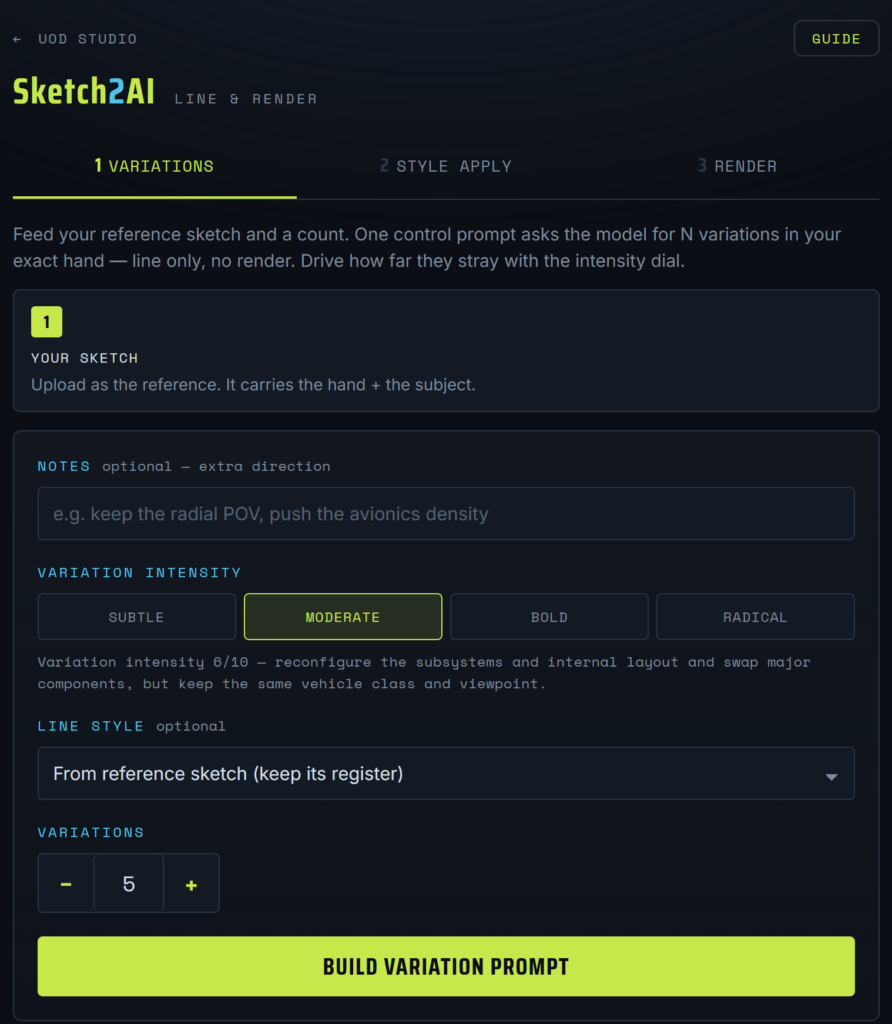
Feeds one reference sketch and asks for N variations in your exact hand — line only, no render. The intensity dial controls how far each variation strays from the original: Subtle keeps the silhouette, Moderate reconfigures subsystems, Bold rethinks proportions, Radical treats the reference as style only.
How to use it
Upload your sketch as image 1. Set intensity, pick a line style preset (or write your own), choose a count from 1 to 8, add optional notes. Build, copy, paste into GPT with the sketch attached.
Controls
Variation intensity Line style Variations Notes
TipStart at Moderate. If the outputs feel too safe, jump to Bold rather than nudging up one step.
Step 3 / 5
Tab 2 — Style Apply
What it does
Redraws any image in your sketch hand. Image A is the subject (content preserved). Image B is your sketch style (hand matched). The result comes back as a line sketch in your vocabulary. HARDLOCK PLOCK enforces the style match.
How to use it
Upload the content as image A and one of your sketches as image B. Optionally lock a line-style preset. Choose 1 to 6 generations. Build, copy, paste into GPT with both images attached in the right order.
Controls
Line style Generations
TipCleaner content image in = cleaner sketch out. Crop or clean up image A first if it is noisy.
Step 4 / 5
Tab 3 — Render
What it does
Renders a sketch in a referenced finish style. Image 1 is your sketch (design preserved exactly). Image 2 is the look to apply. HARDLOCK PLOCK pushes for exact reference-style match. Clean plate strips every annotation, callout, and inset from the output so you can layer text in PSD.
How to use it
Upload the sketch as image 1 and a style reference as image 2. Toggle Clean plate on to strip annotations. Add optional style notes. Build, paste into GPT or Nano Banana.
Controls
Style notes Clean plate
TipNano Banana renders eagerly, which is exactly what you want at this stage. Use it here.
Step 5 / 5
Build and Copy
What it does
Each tab has a Build button that assembles the prompt and drops it into a paper-style plate below with a Copy button. The prompt is paste-ready — no further editing needed. Stage tags (Stage A / Stage B) show which pipeline slot each output belongs to.
How to use it
Hit Build on the active tab. Review the prompt. Hit Copy prompt. Switch to your AI tool, upload the referenced images in the noted order, paste, generate.
Controls
Build variation prompt Build style-apply prompt Build render prompt Copy prompt
TipThe plate stays until you rebuild, so you can copy the same prompt multiple times or tweak a setting and regenerate the prompt instantly.
1 of 5
For full access to the tools, please email:
hello@universesofdevotion.ai
Sketch2AI EXAMPLES
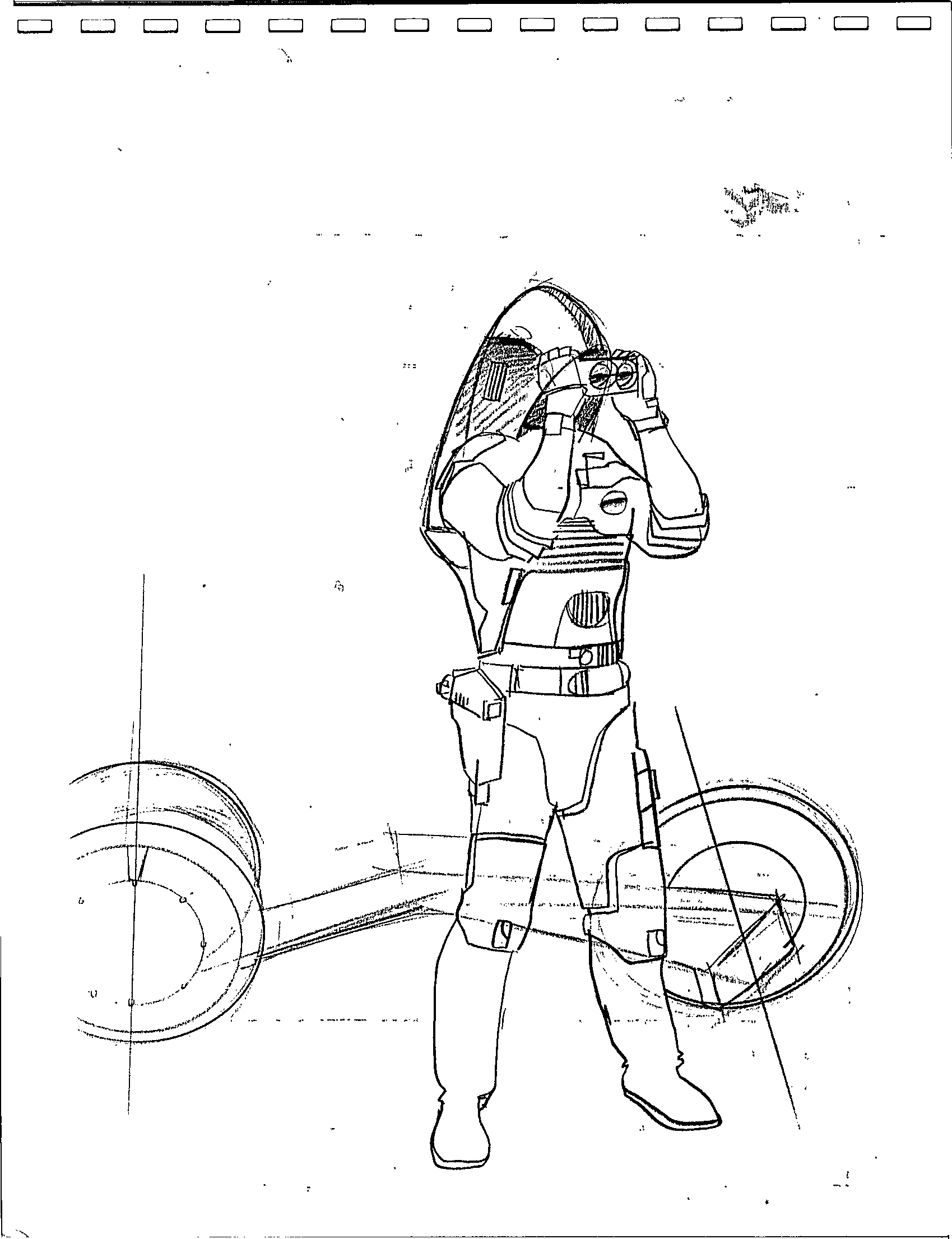
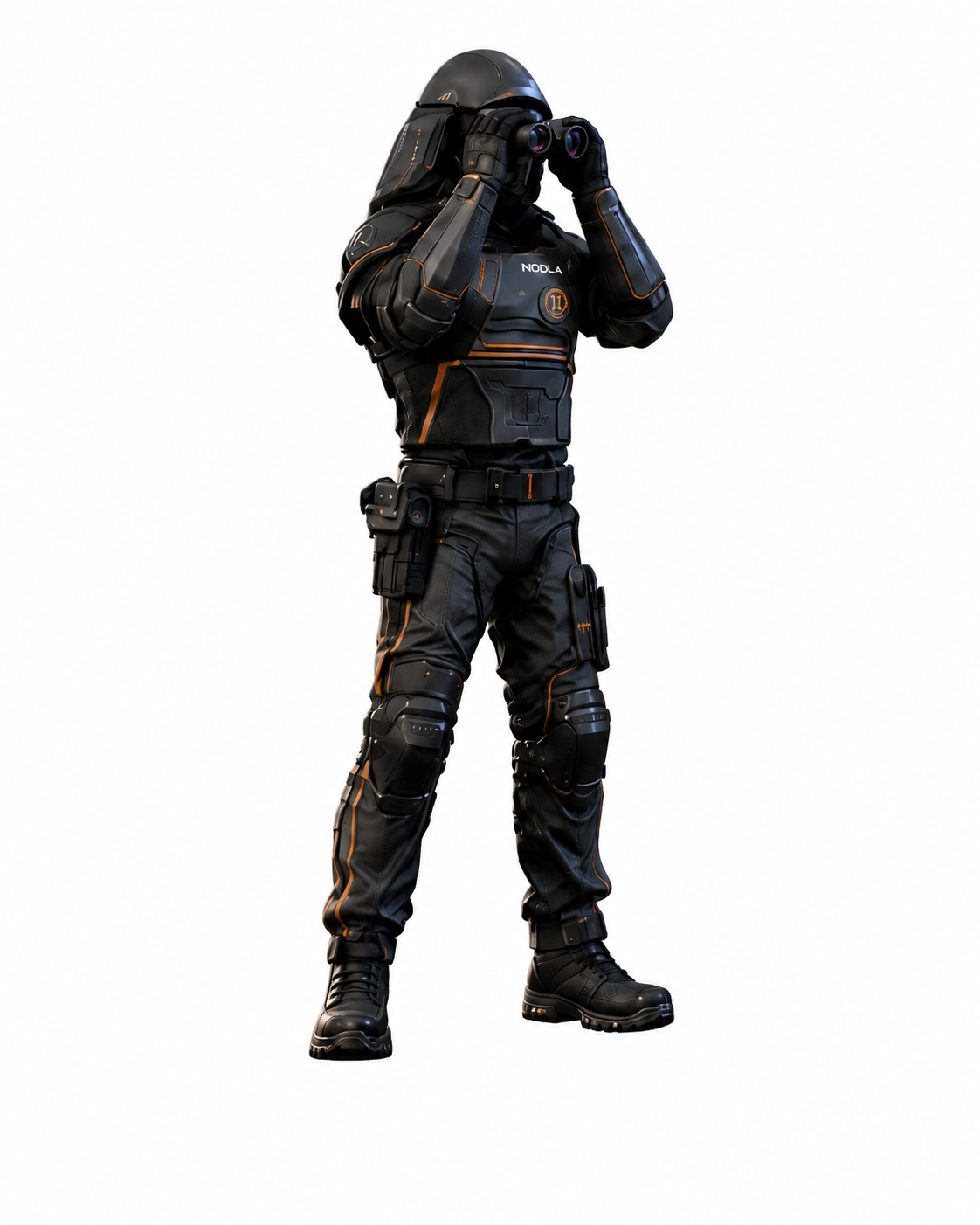
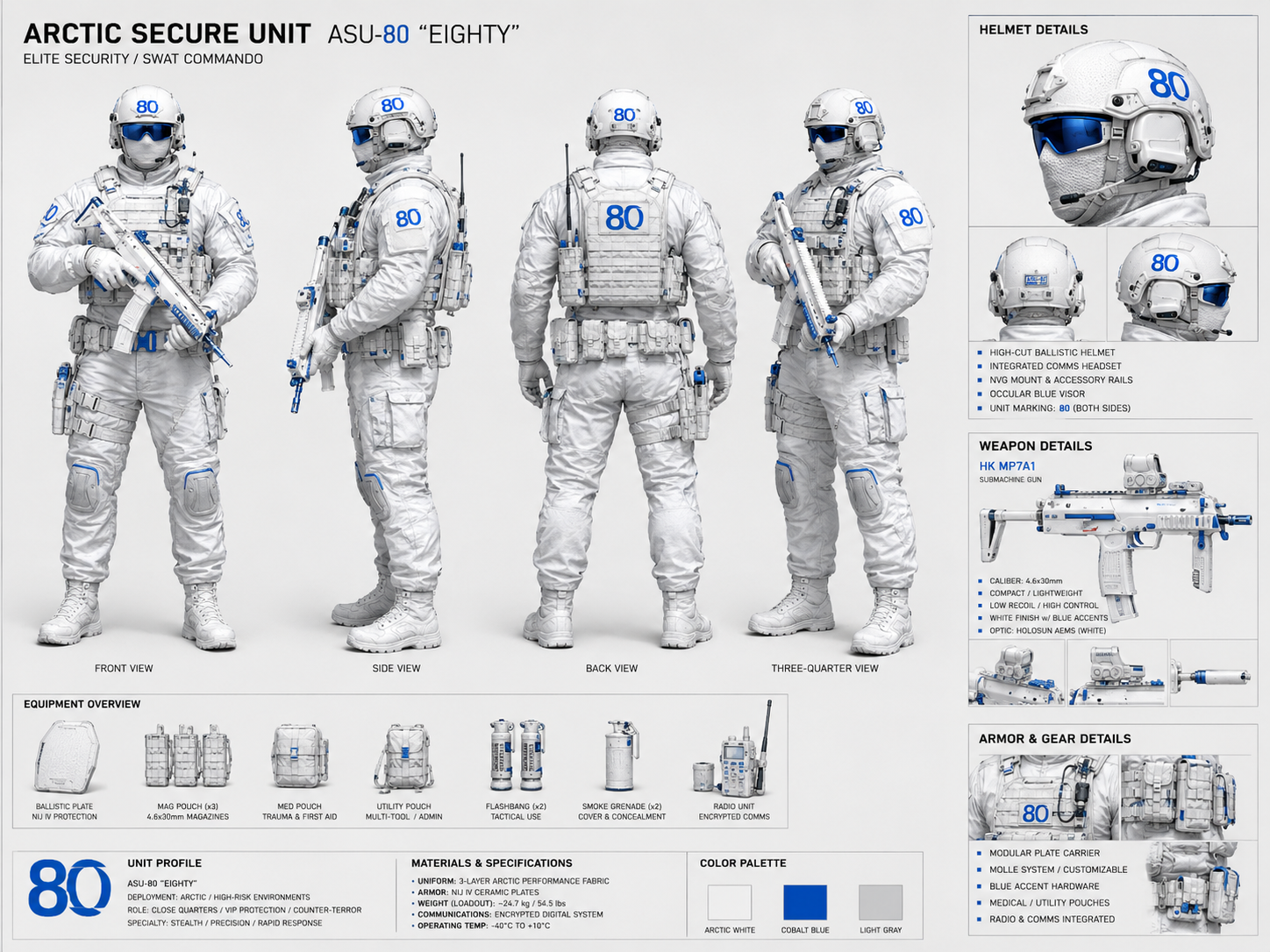
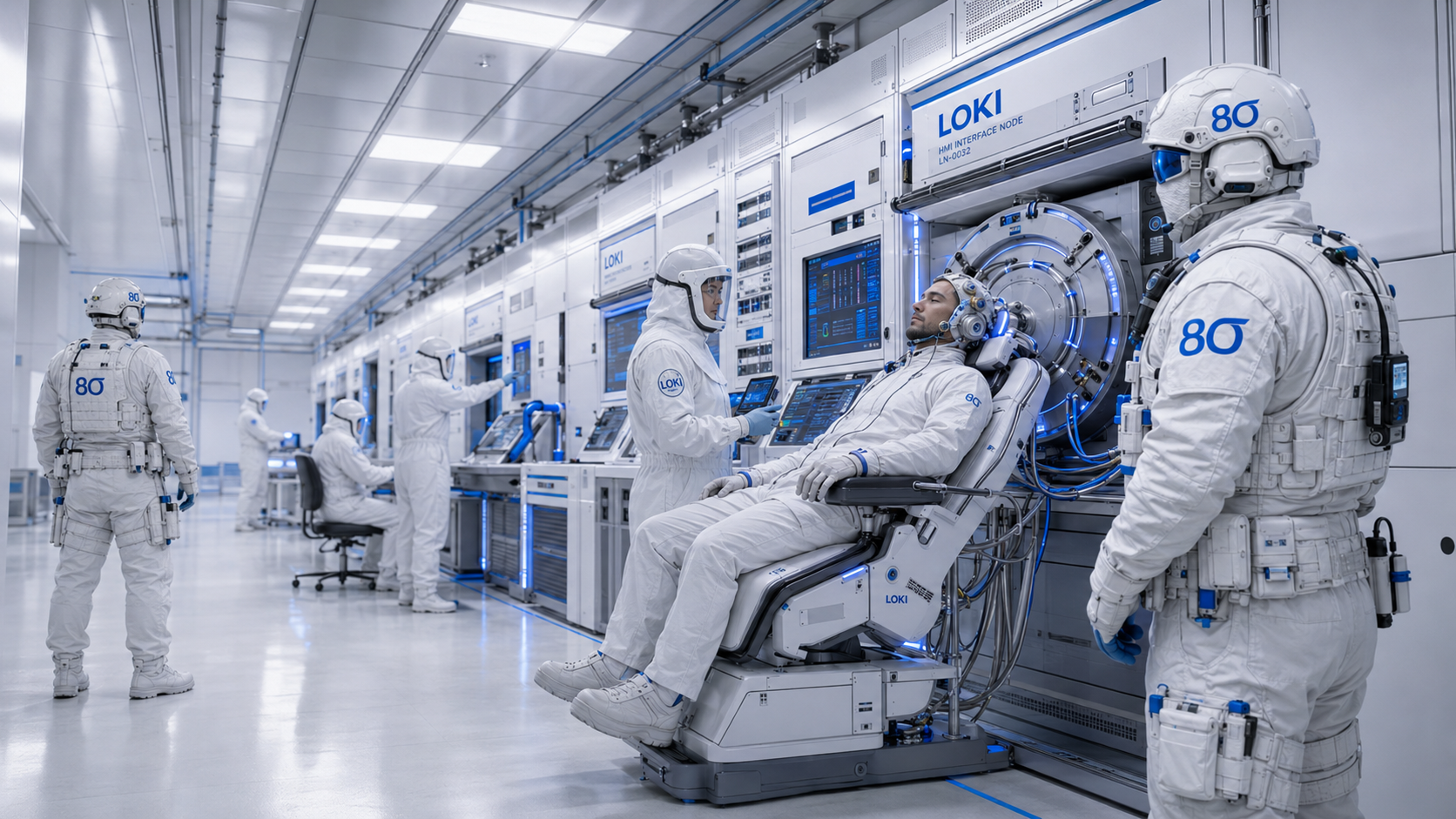
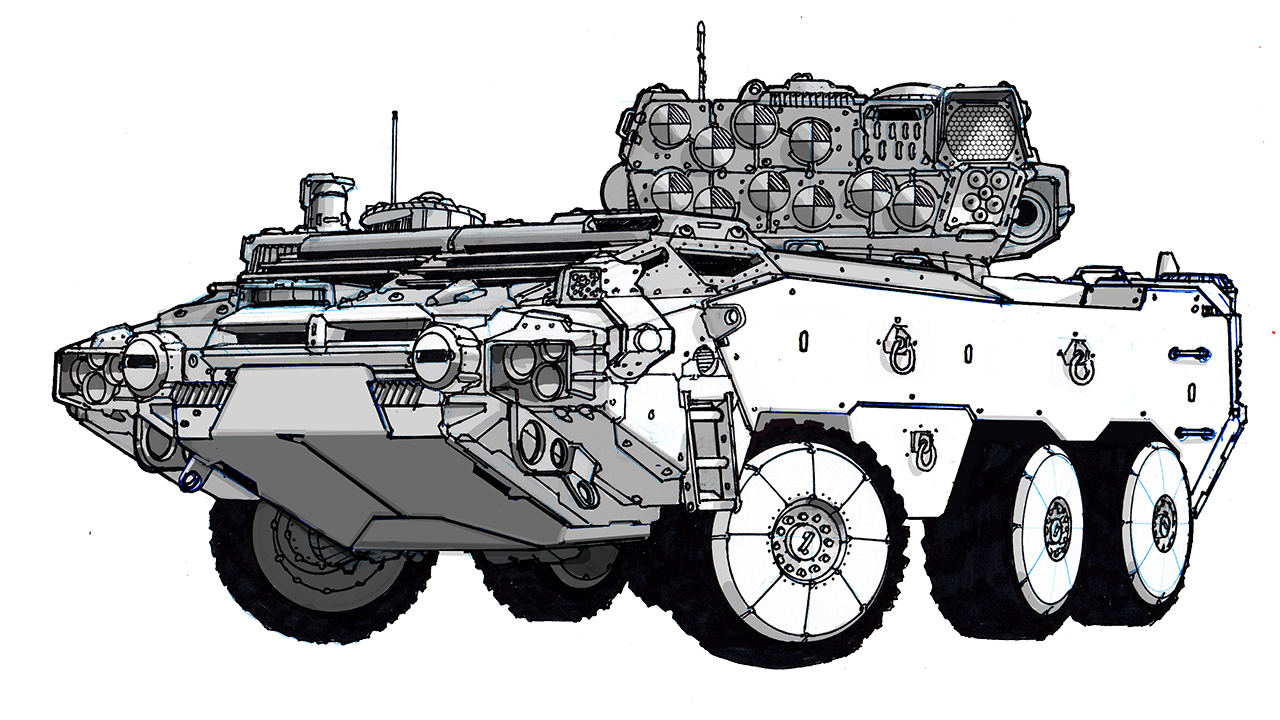
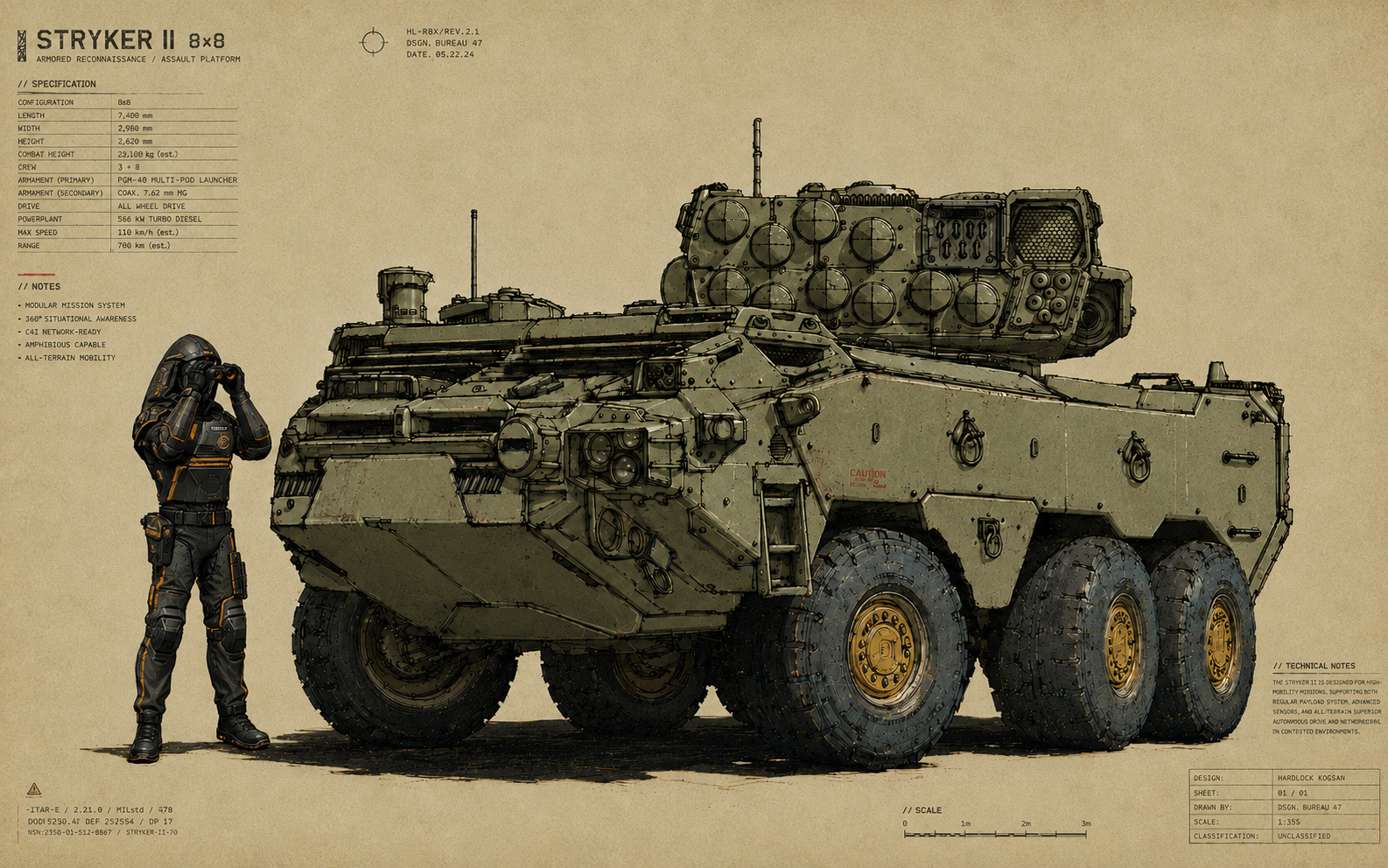
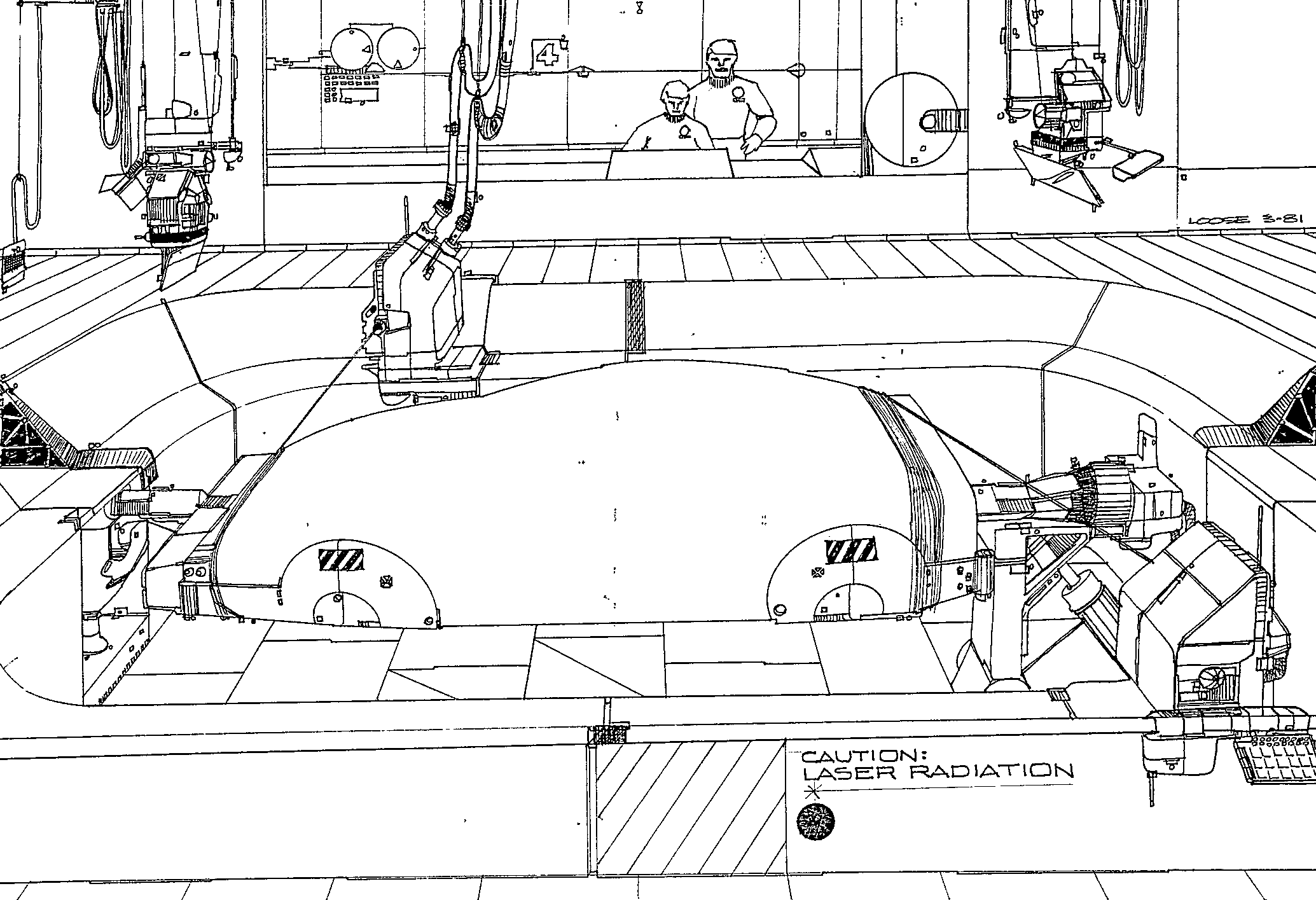
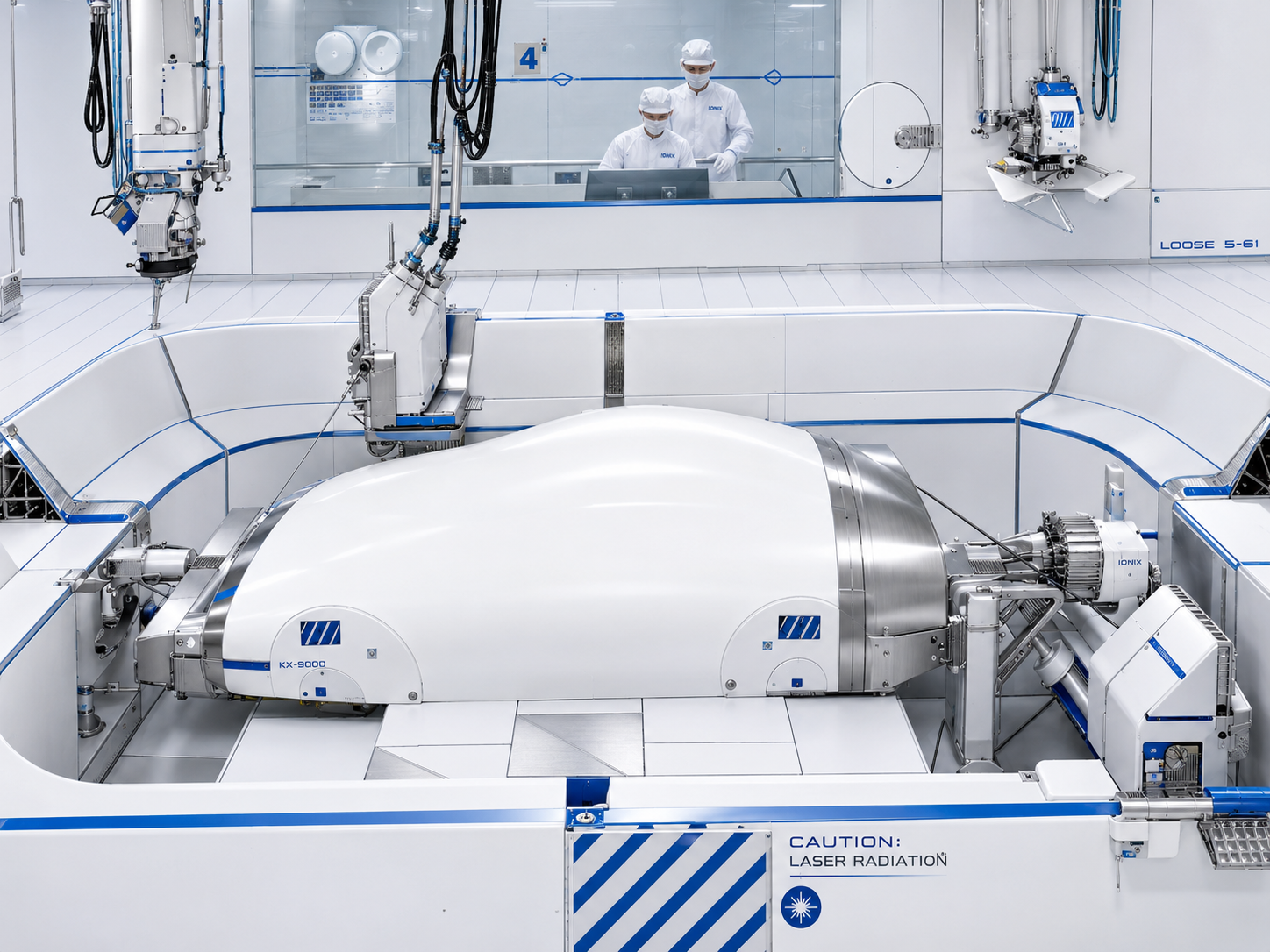
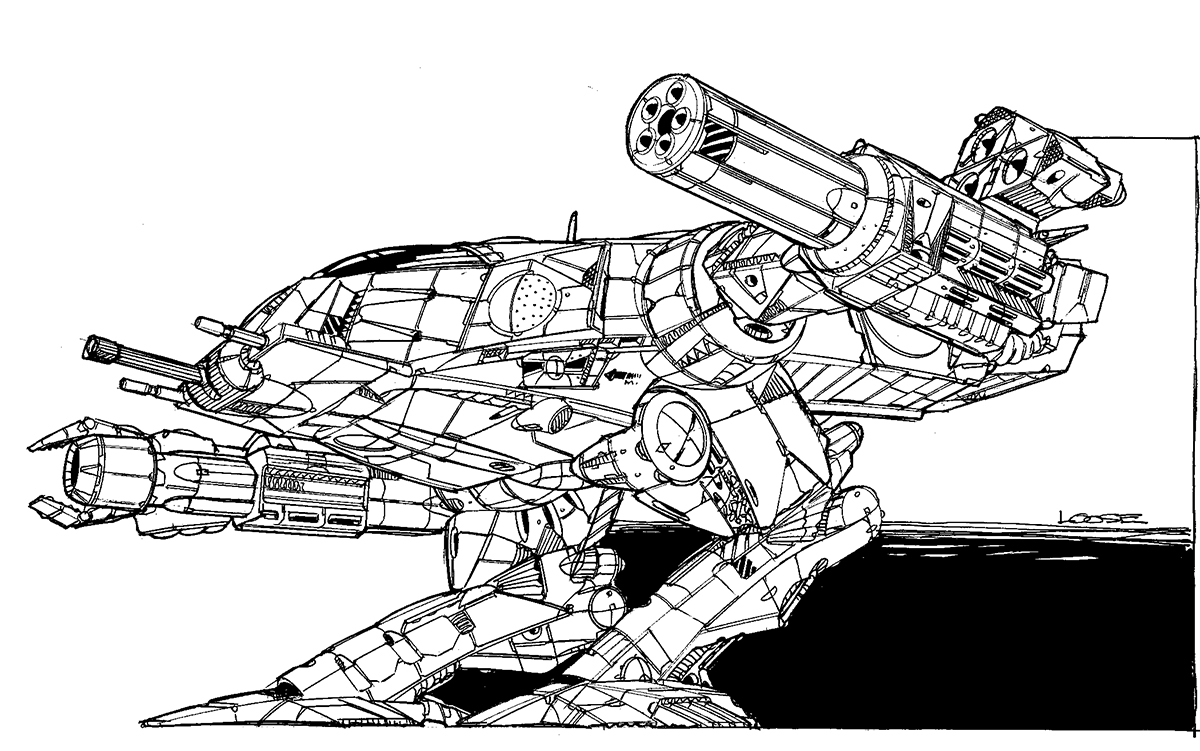
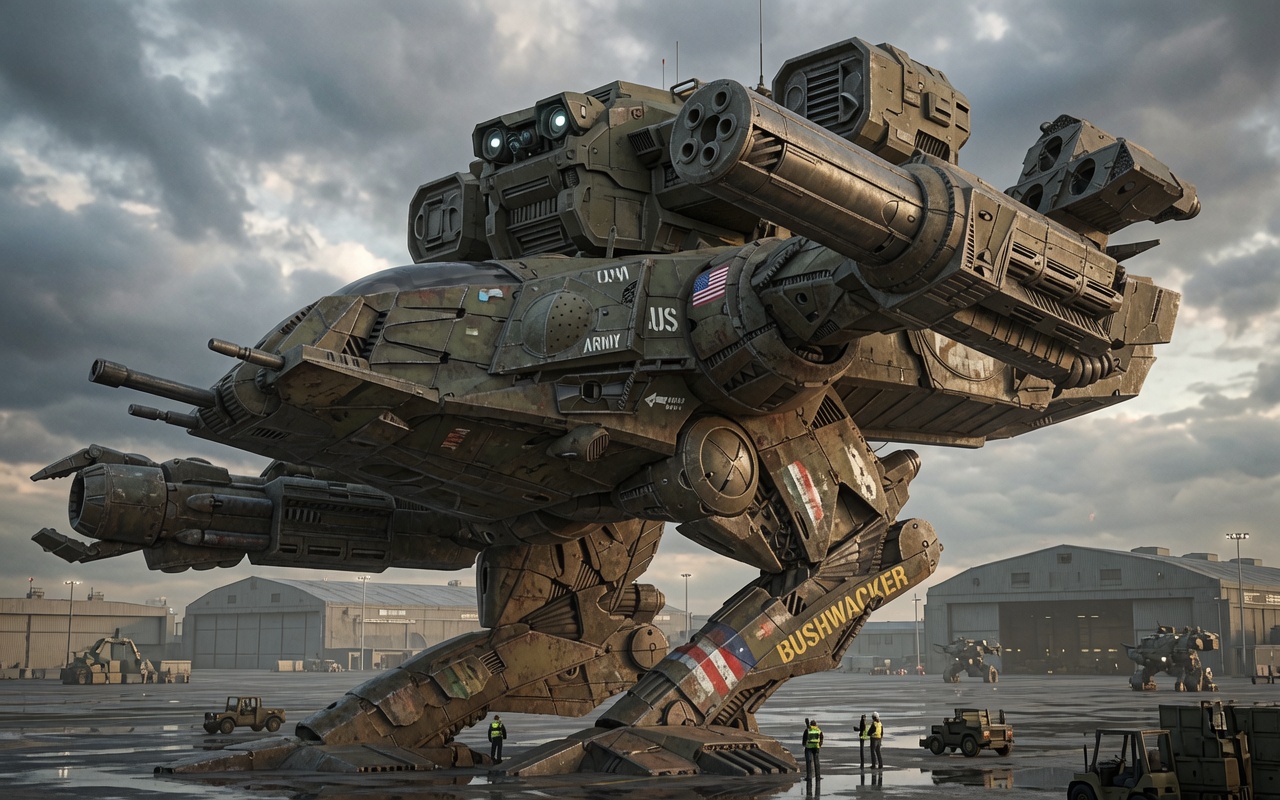
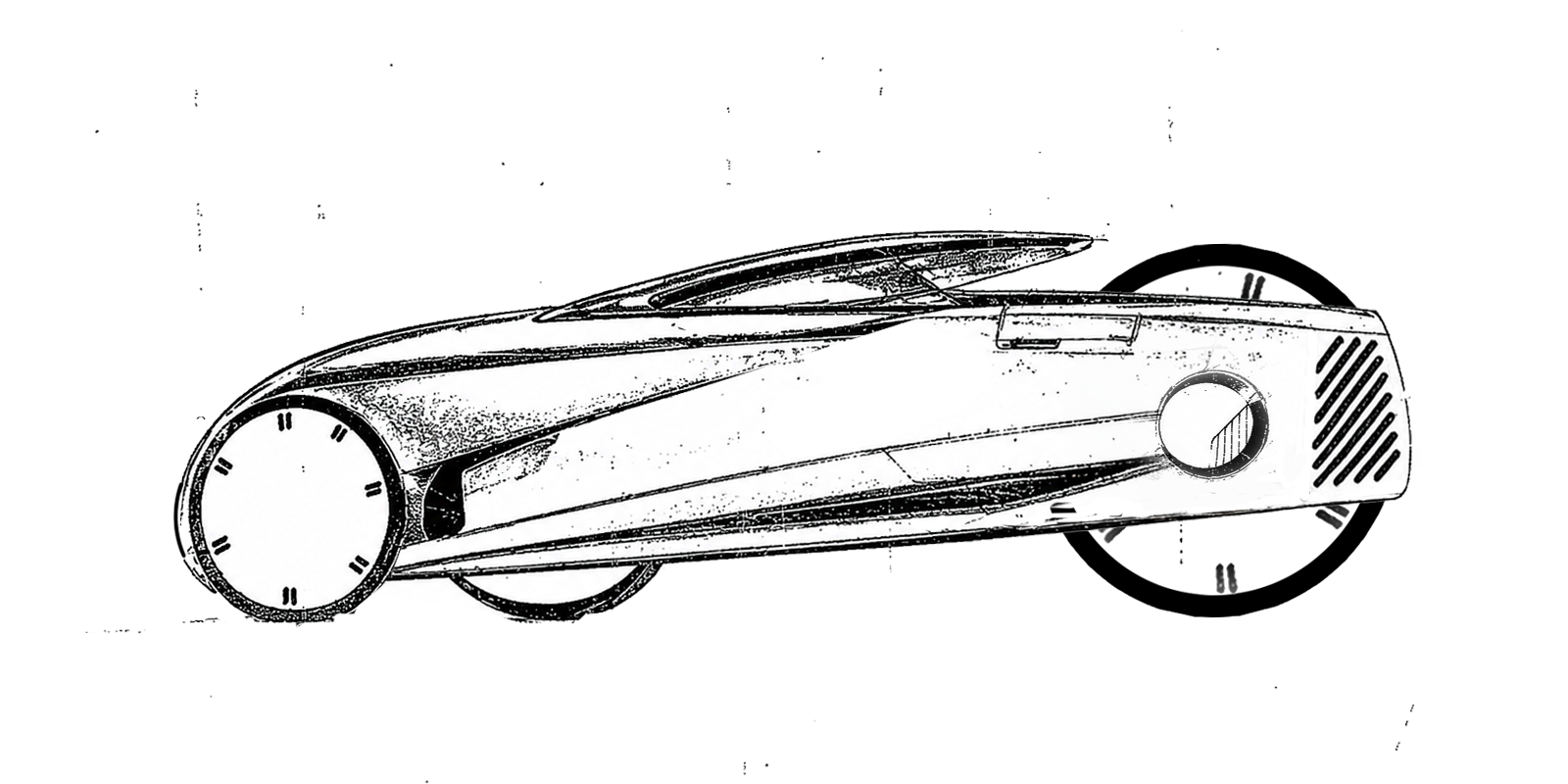
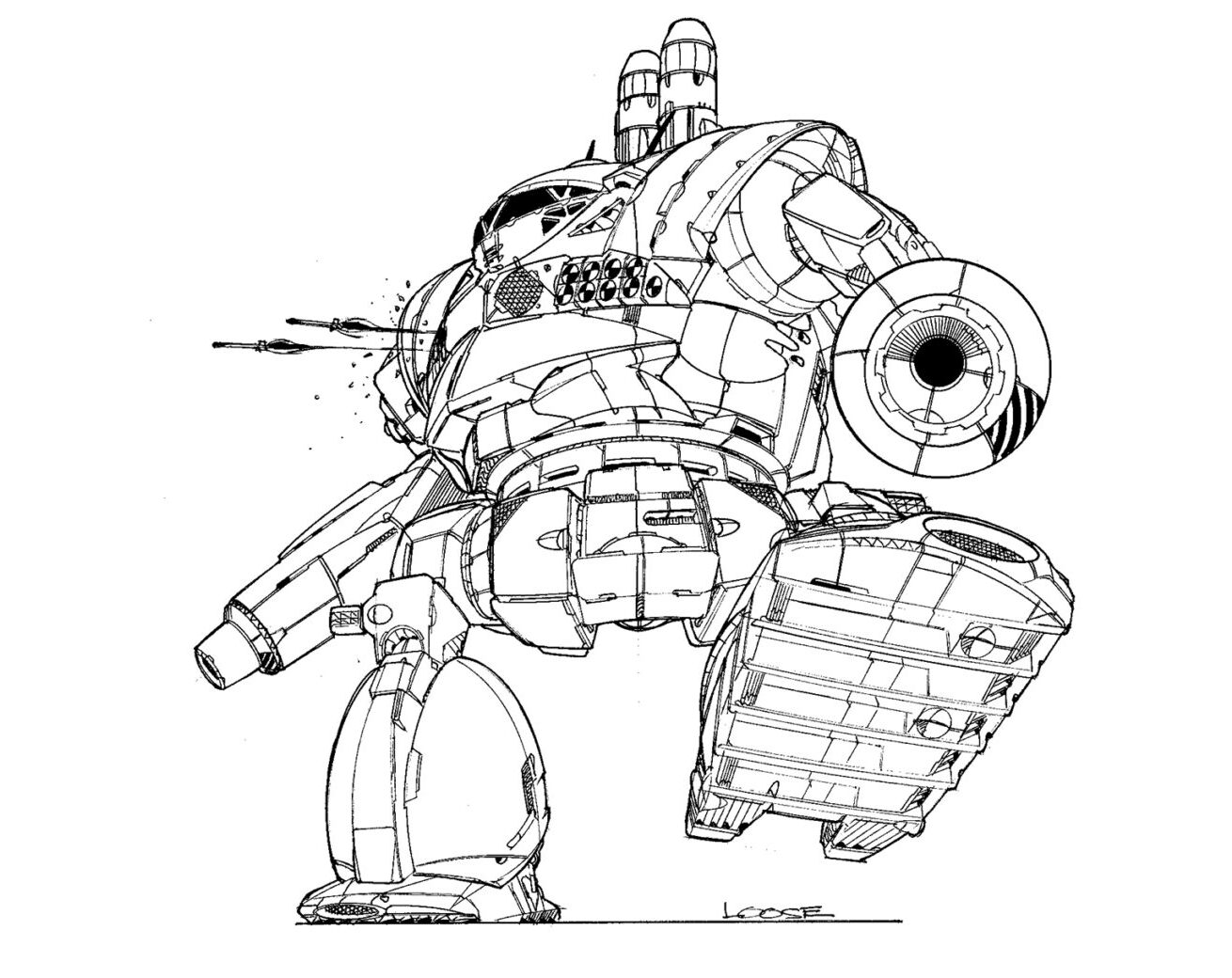
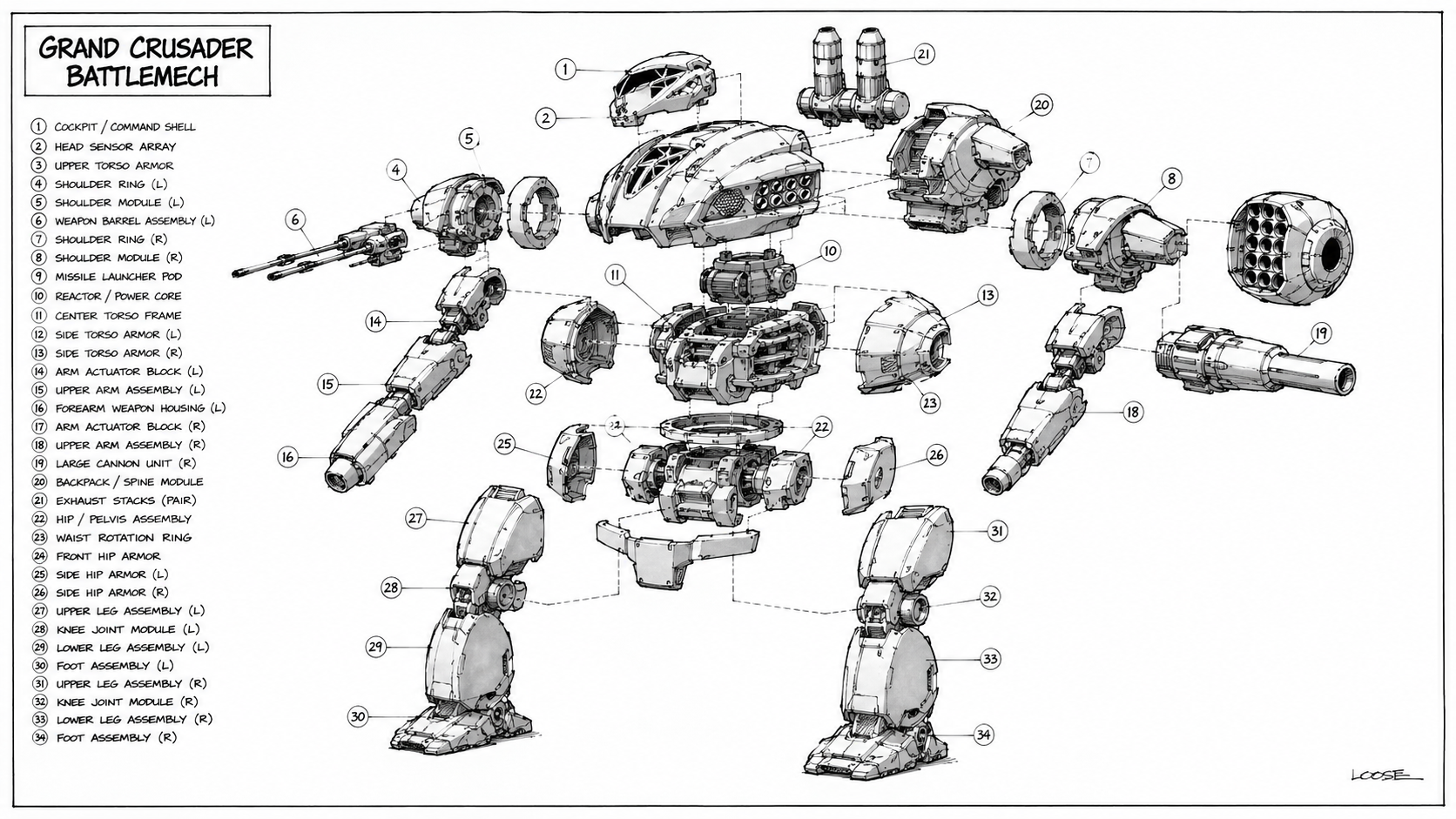
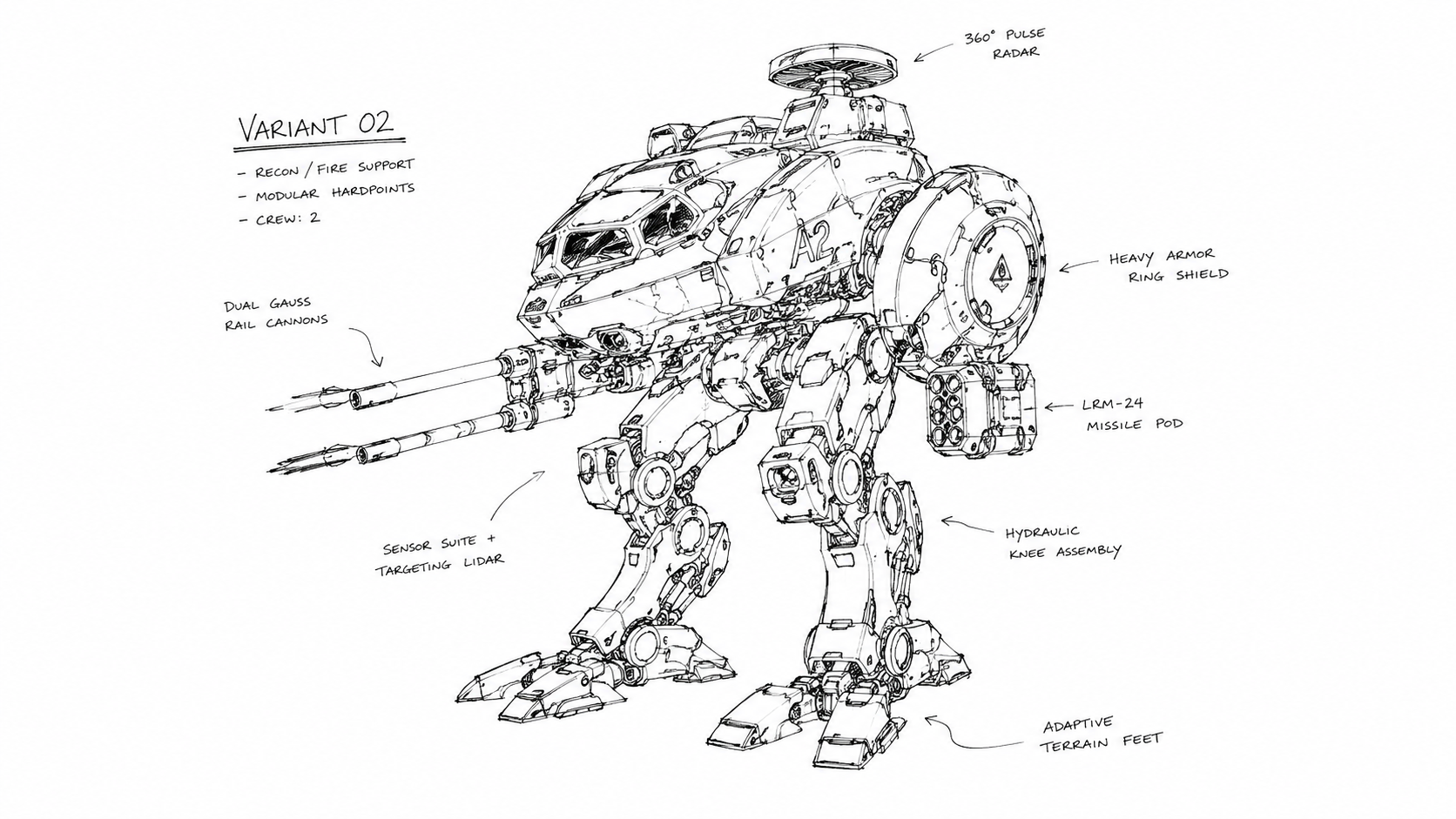
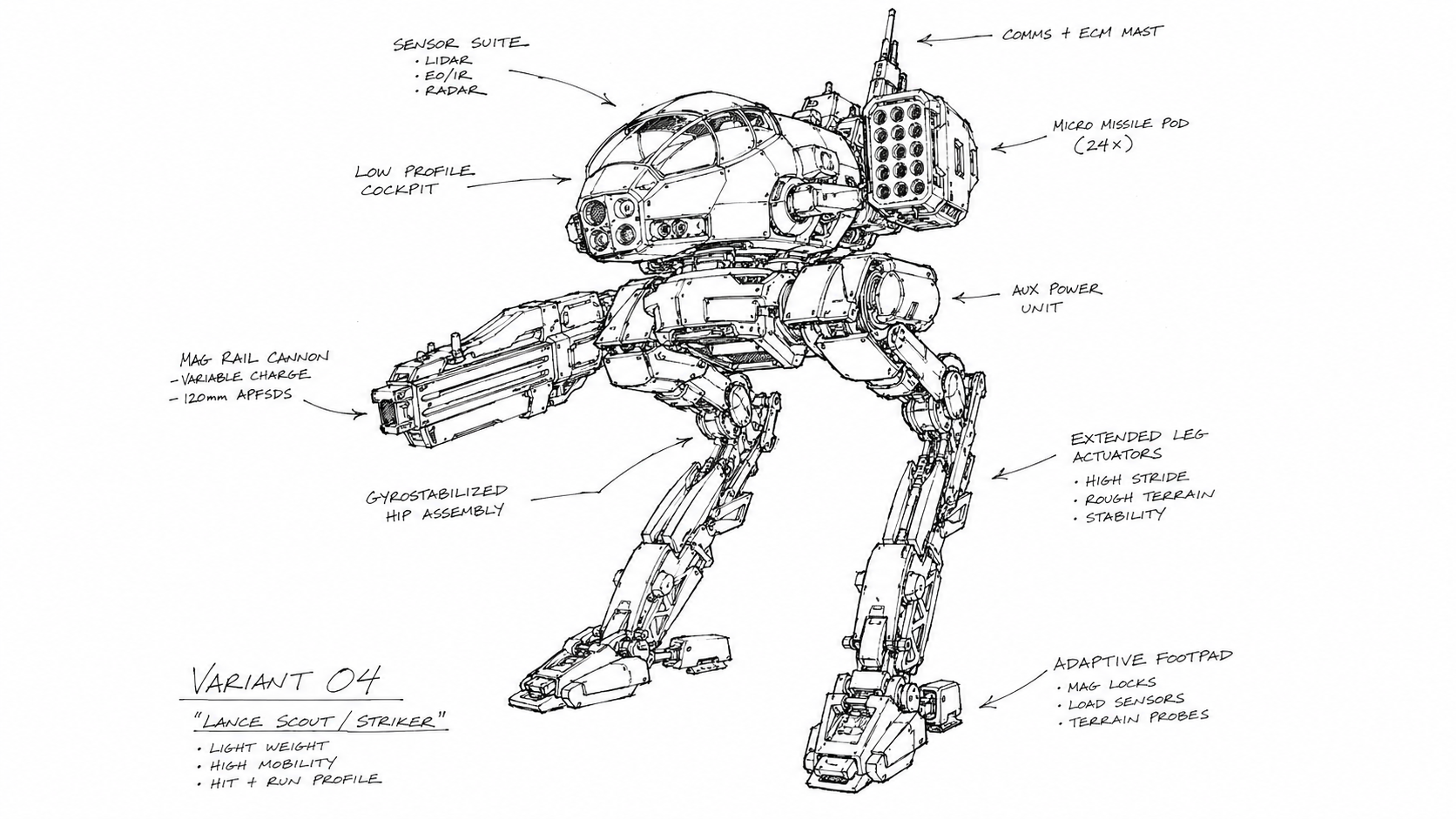
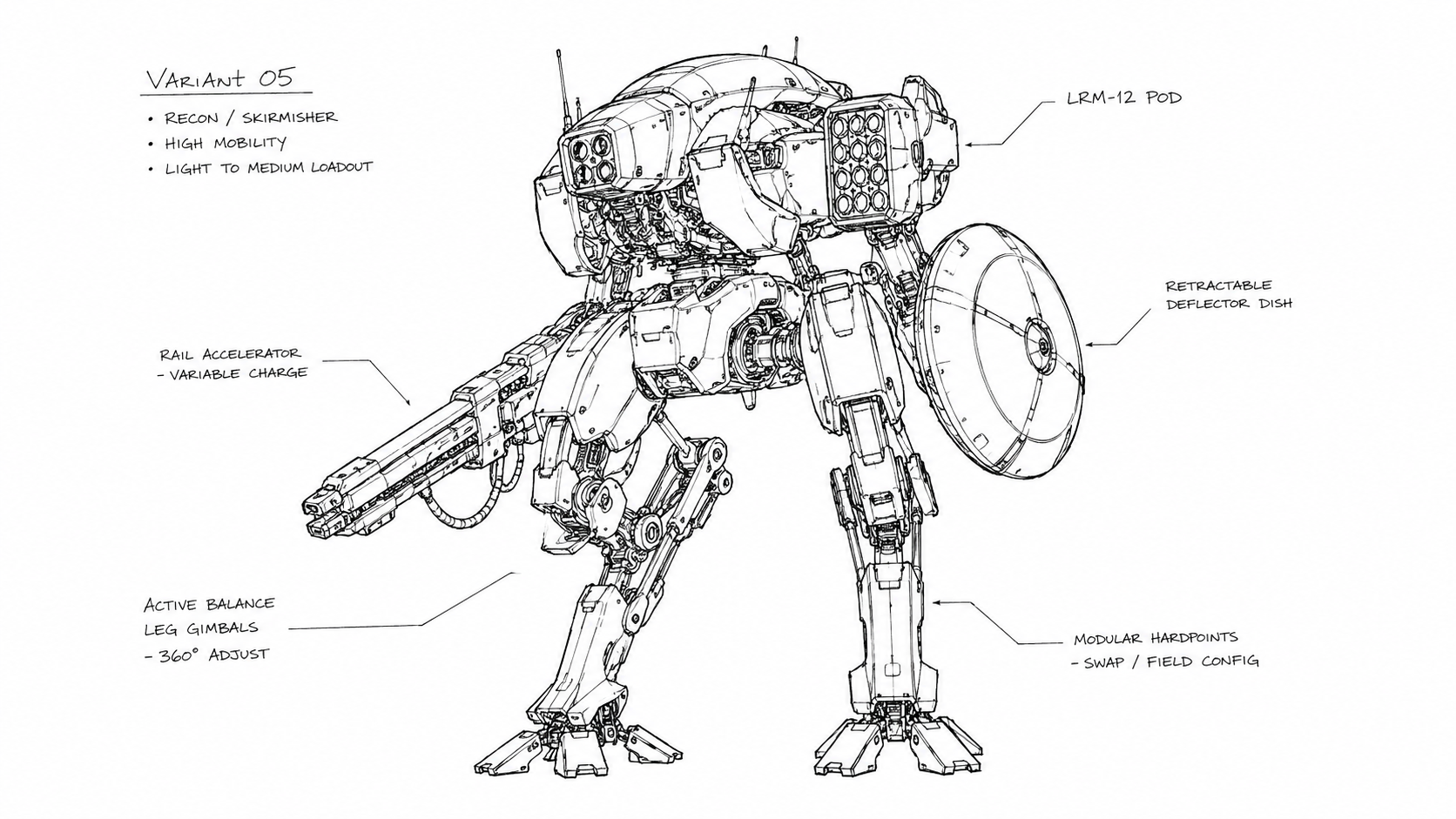
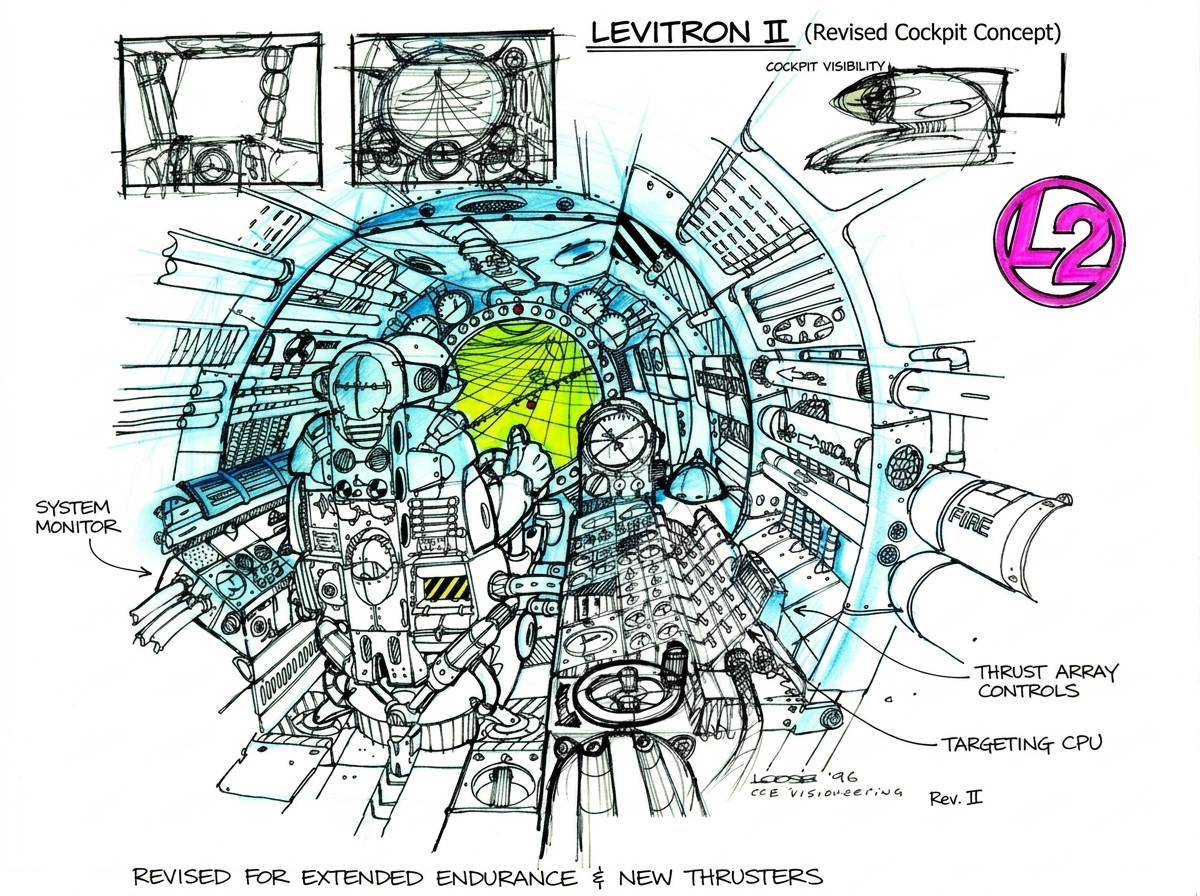
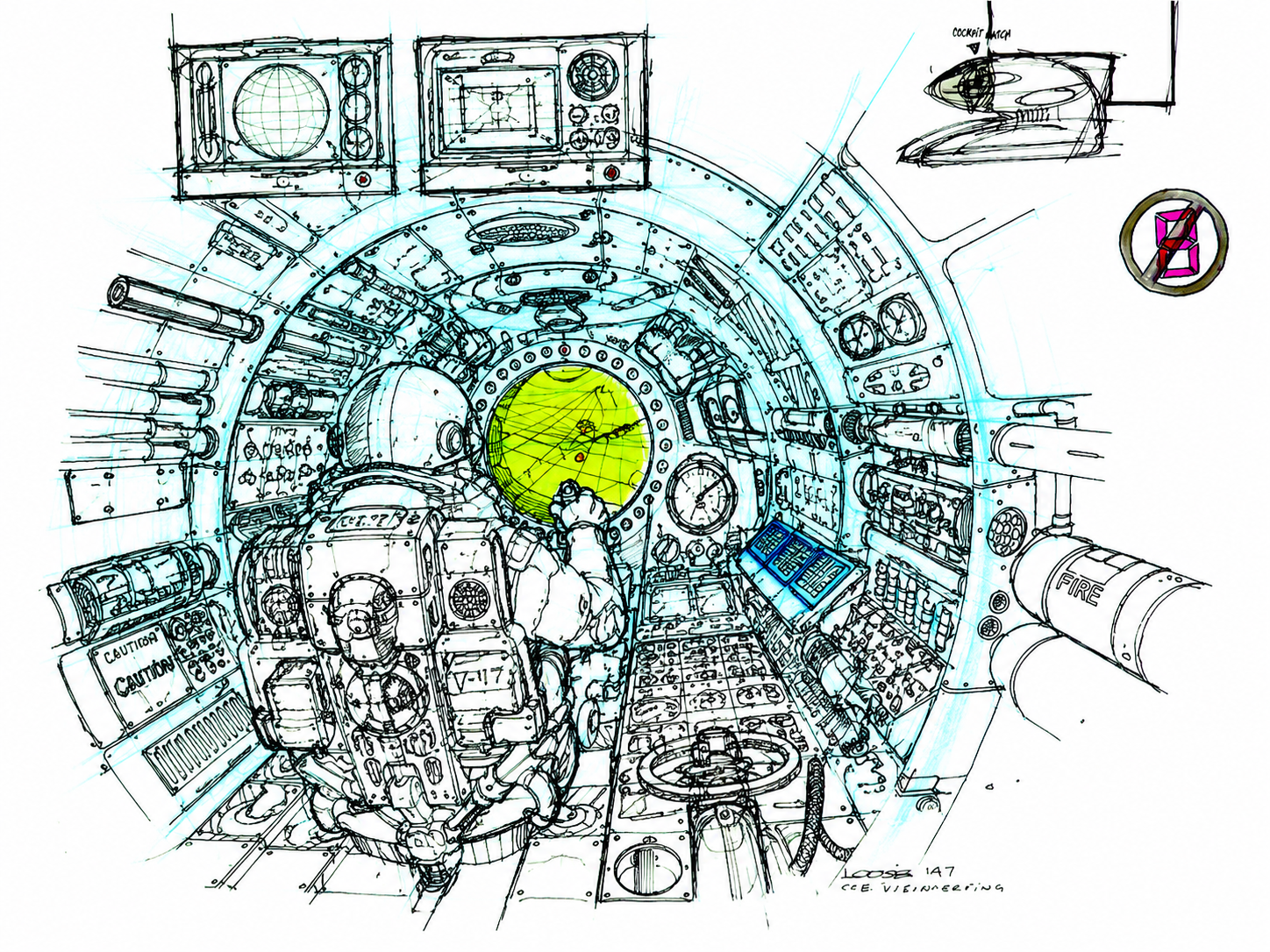
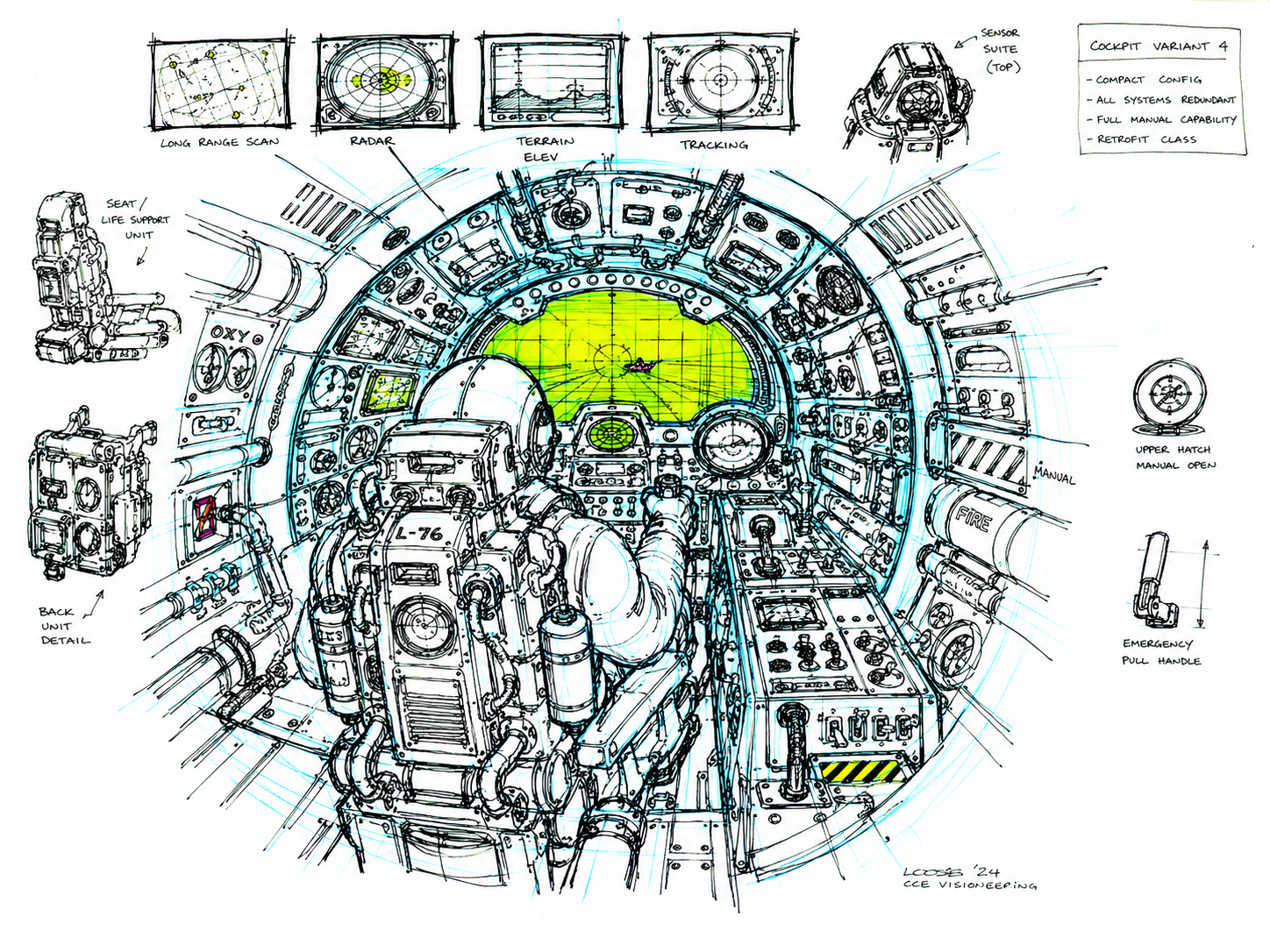
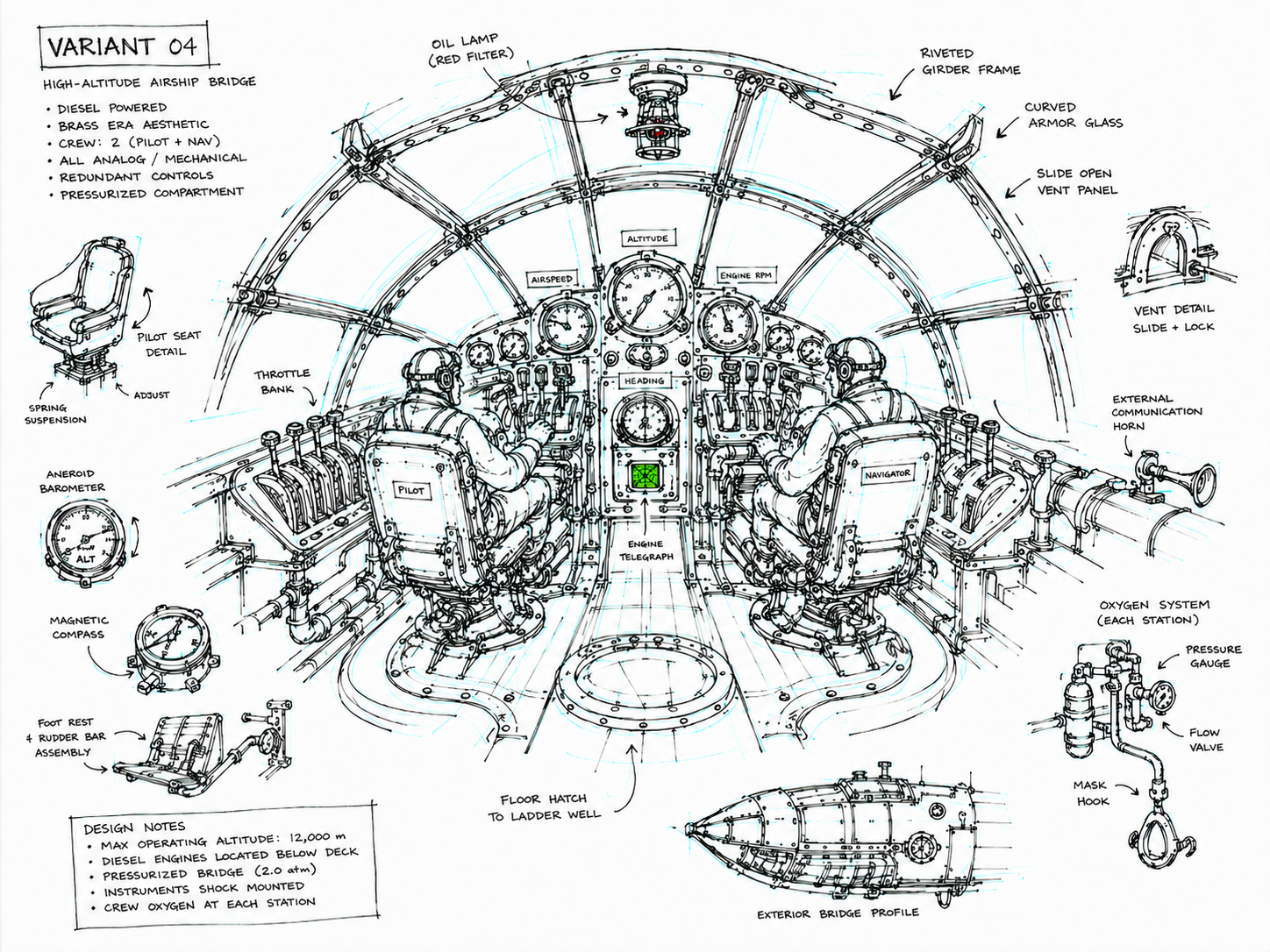
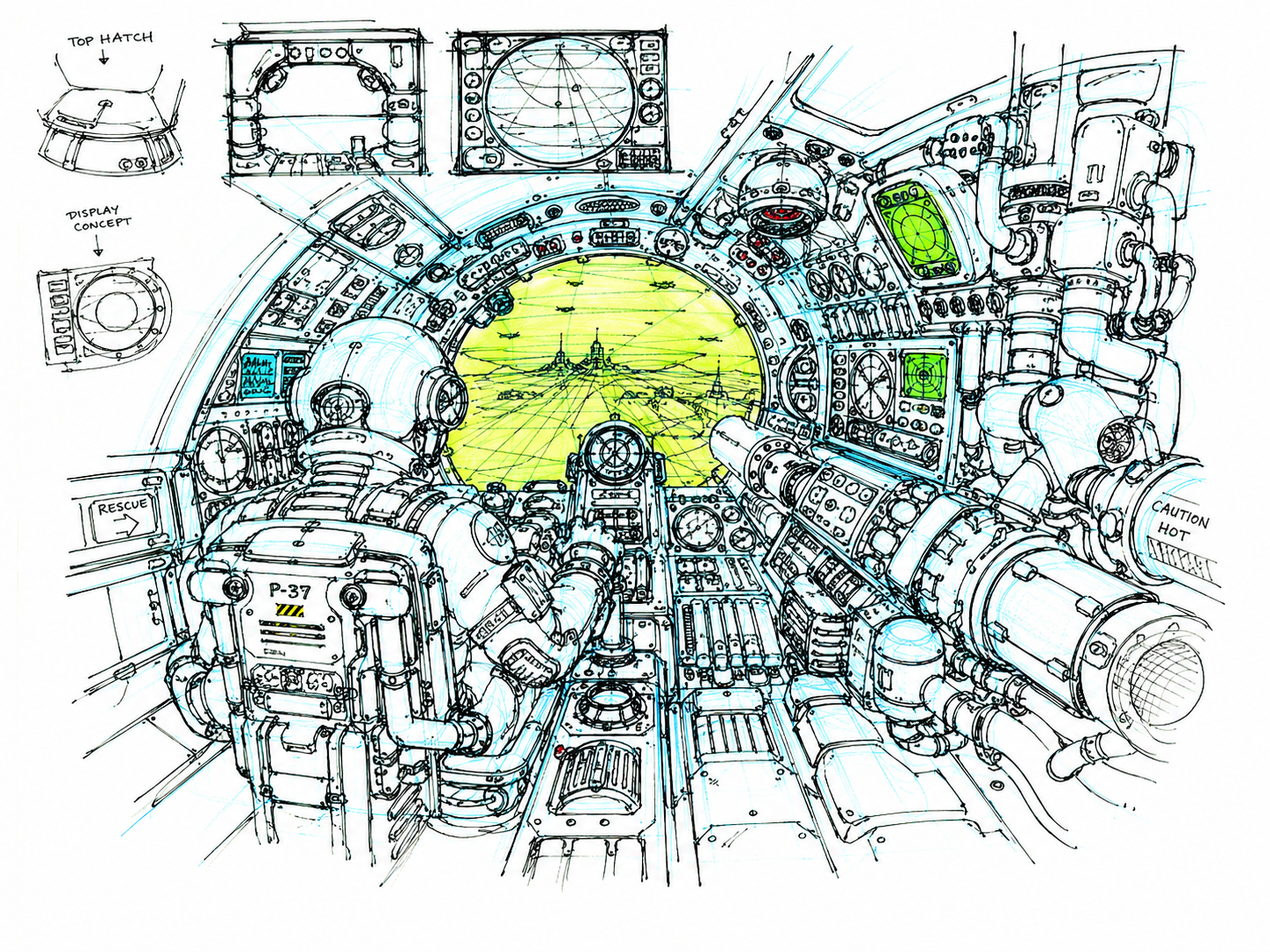
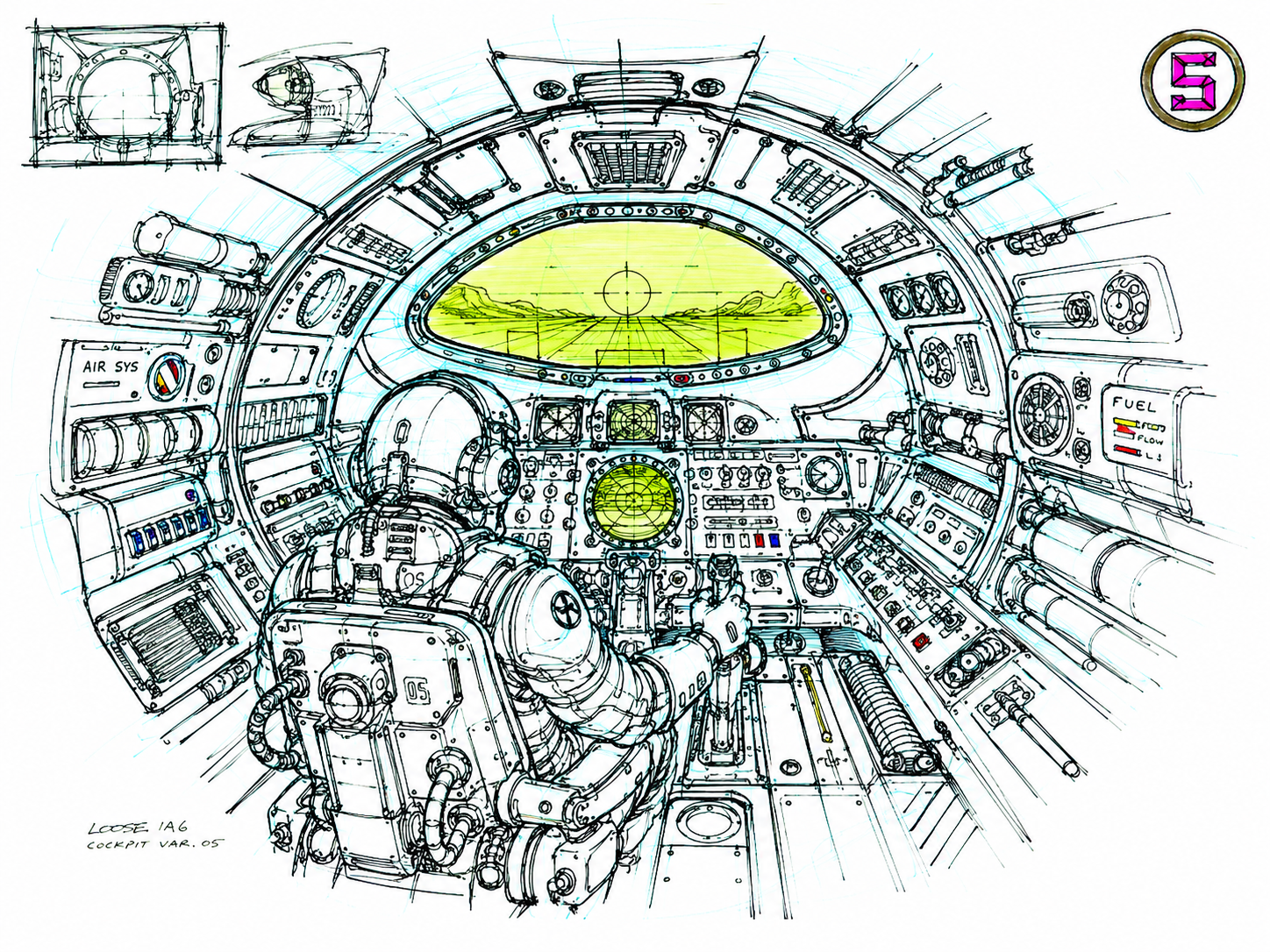
Image variations created using the RADICAL mode - Prompt created then Rendered in ChatGPT.
If you're interested in testing these tools, you can join our BETA TEAM. Send an Email to hello@universesofdevotion.ai