
Skip to content
No results
ID2AI.ART
  • ABOUT
  • ABOUT | INFO
  • BUDO4AI
  • CONTACT
  • GUIDES
    • LOCK COMMANDS | User Guide
    • xSTEEM Books
    • xSTEEM MANUALS
      • INDUSTRIAL DESIGN to AI
      • INDUSTRIAL MECHS | Extreme Envionments
  • LAB
  • MAIN PAGE
  • PROJECTS
  • TOOLS
    • BUDO4AI
    • Sketch2AI
Industrial Design 2 AI
ID2AI studio

Tools | Process | magination

  • PROJECTS
  • TOOLS
  • GUIDES
    • xTECH
    • xSTEEM Books
  • LAB
Industrial Design 2 AI
ID2AI studio

Tools | Process | magination

Home TOOLS BUDO4AI
Guide
How to use BUDO4AI Martial Encounter Prompter · UoD Studio
Step 1 of 7

What BUDO4AI Does

BUDO4AI locks martial artists as fixed visual identities and builds a six-frame martial-arts storyboard from bow to bow.

Work from top to bottom: choose the discipline, set the mode, define the fighters, build the encounter, select framing and style, then generate the prompt.

TipEach output includes HARDLOCK identity instructions to reduce character drift between frames.
Step 2 of 7

Discipline

Choose the martial art that controls the encounter vocabulary. Aikido is active in this version; Judo and Kung Fu are planned.

TipThe selected discipline controls the attacks, techniques, weapons, stances, and resolution options.
Step 3 of 7

Mode

Kihon creates a formal one-attacker exchange. Jiyu keeps the technique open. Randori adds multiple attackers. Kata creates a solo form.

TipRandori reveals an attacker-count control. Kata replaces the two-person encounter with a solo practitioner and stance selector.
Step 4 of 7

Fighters

Enter the asset names for Uke and Nage, choose gender, and assign weapons. These names become identity anchors inside the generated prompt.

TipUse the same names as the uploaded character-sheet filenames.
Step 5 of 7

Encounter

Choose the foot relationship, Uke’s lead foot, the attack, the technique, and the resolution or ukemi.

TipSelecting a technique automatically chooses its usual resolution, but you can override it.
Step 6 of 7

Framing and Style

Choose the output orientation, camera framing, and visual style lock. These settings are carried through all storyboard frames.

TipUse a wider shot when the full stance, throw geometry, and mat position need to remain readable.
Step 7 of 7

Generate and Output

Press Generate, then select Storyboard Grid, Frames (6), or Video. Copy the resulting prompt and paste it into the AI image or video tool with the reference images uploaded in the specified order.
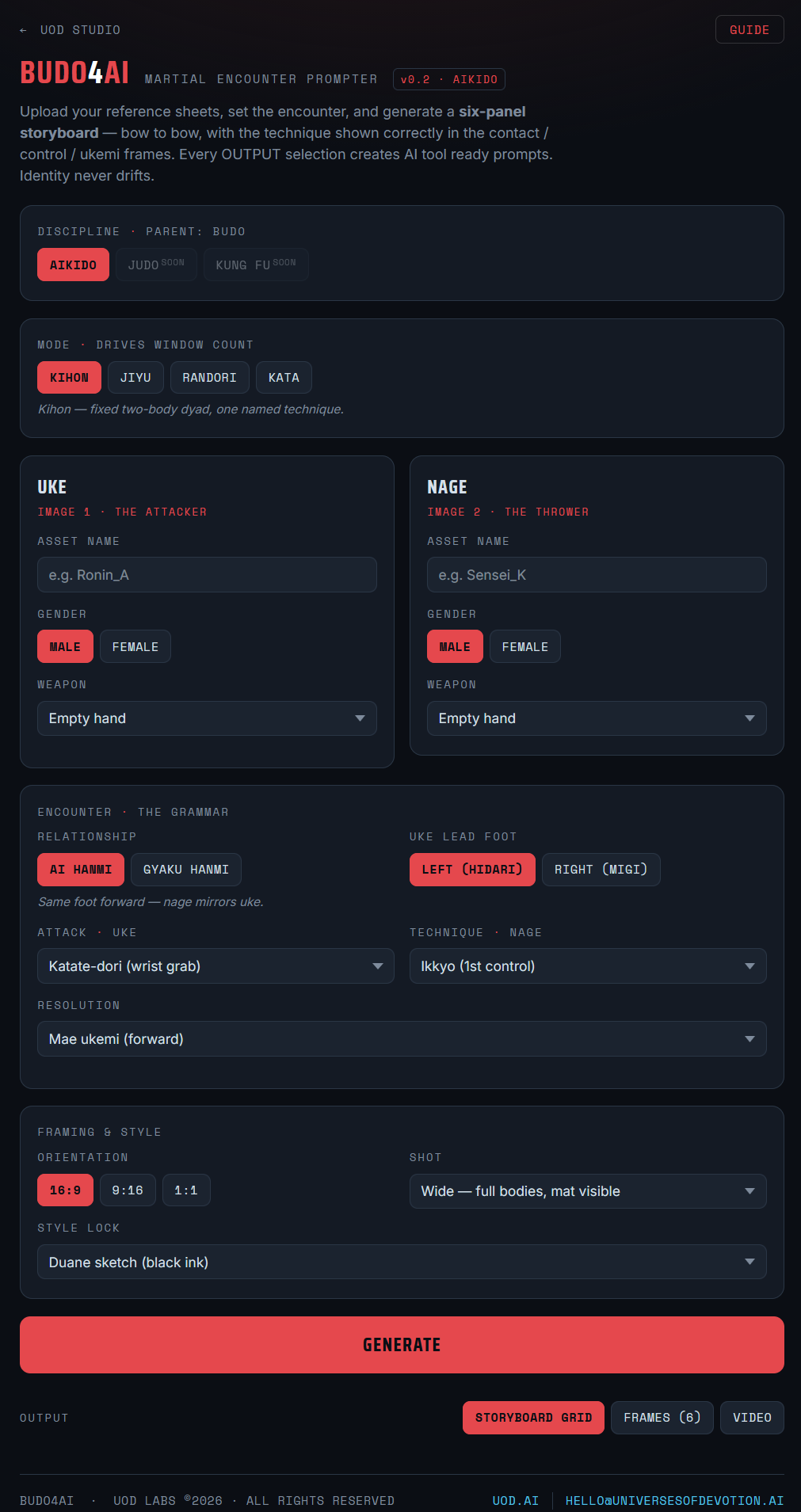
TipStart with Storyboard Grid to verify the complete technique before creating individual frames or animation prompts.
For full access to the tools, please email: hello@universesofdevotion.ai

AIKIDO Examples | Join the BUDO4AI BETA team? contact: hello@universesofdevotion.ai
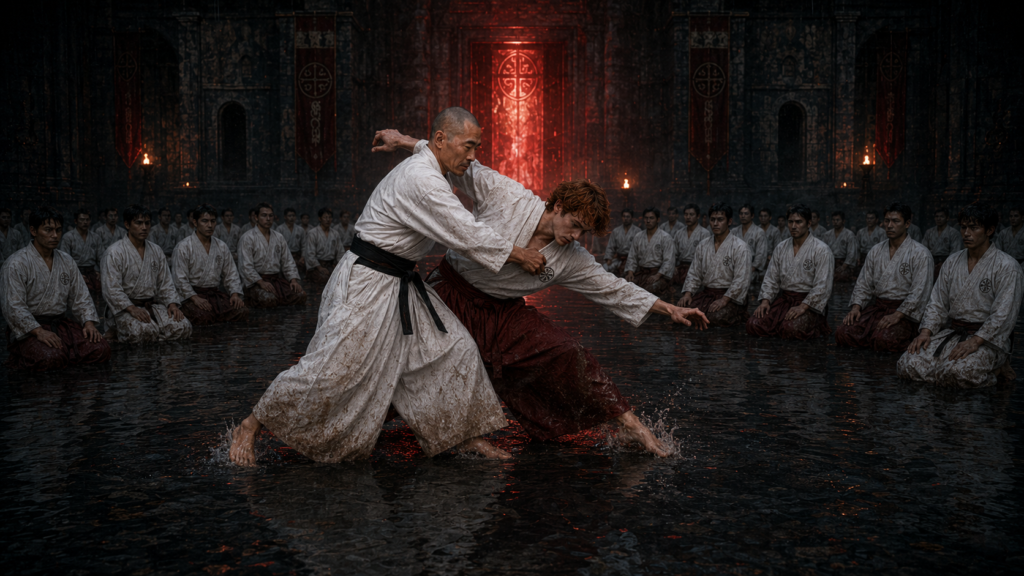
JIYU: KOSHINAGE > KOTE GAIESHI

Copyright © 2026 - ID2AI.ART | All Rights Reserved

  • dloose.com
  • Universes of Devotion